// get started
Using dumbsms
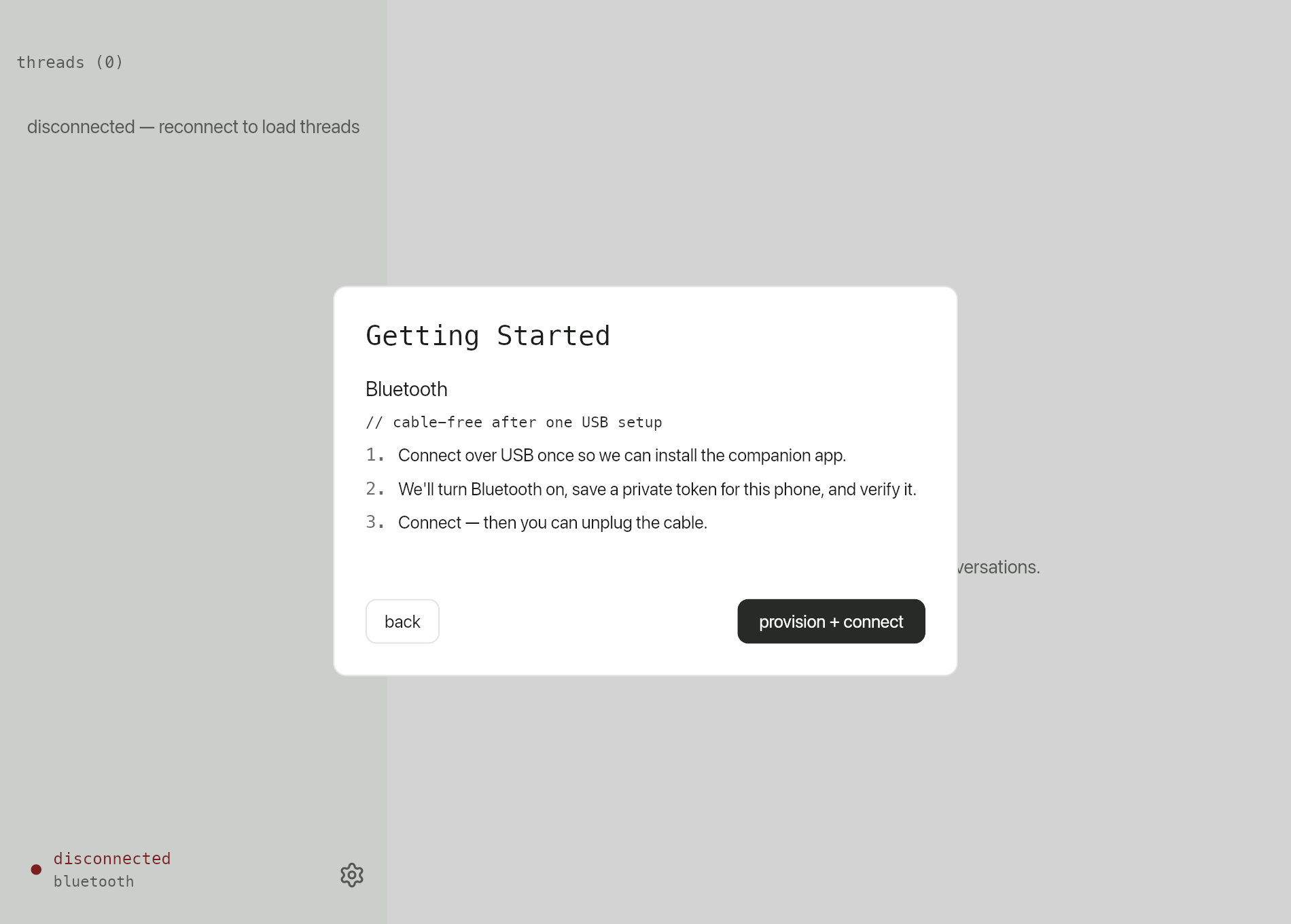
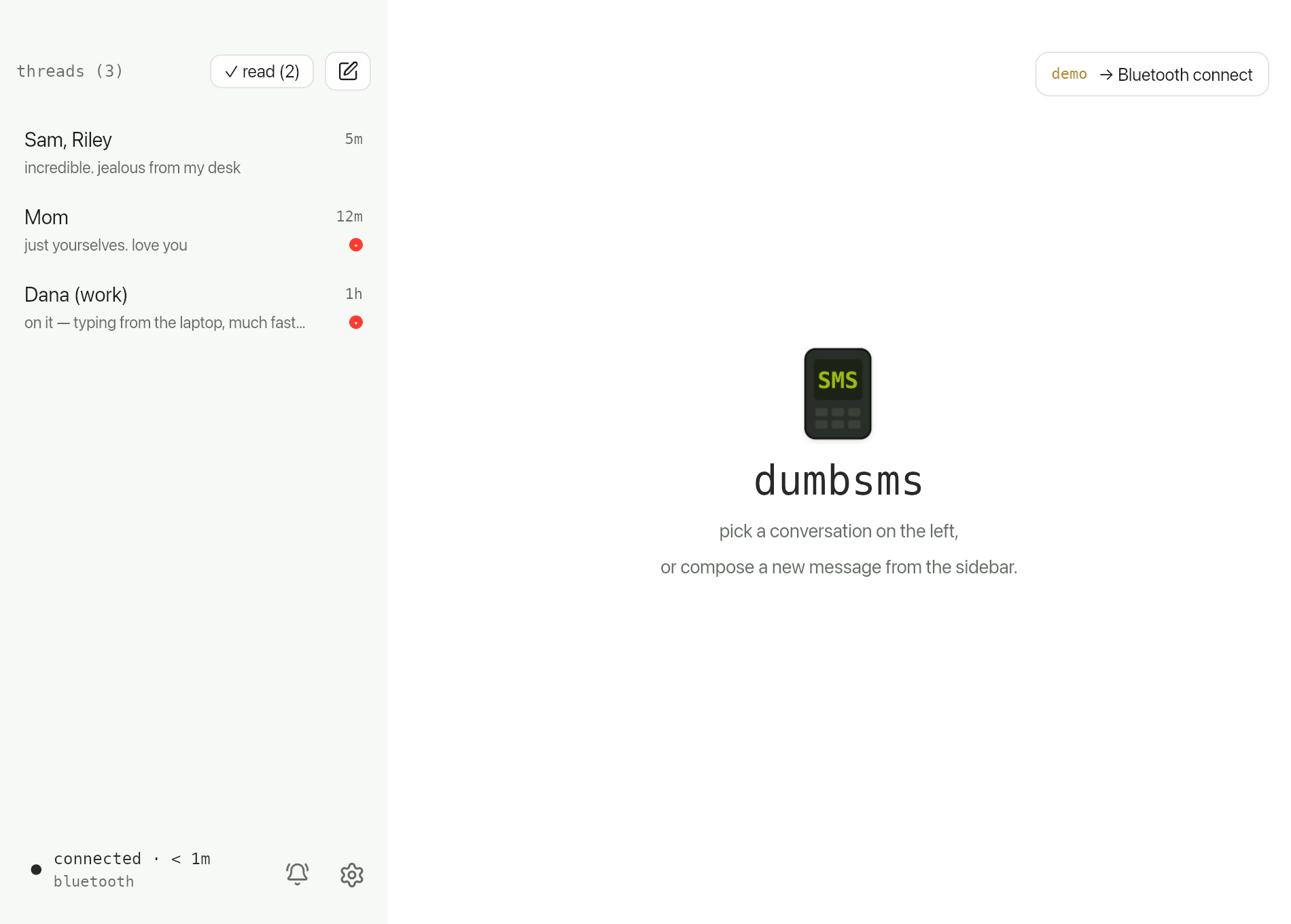
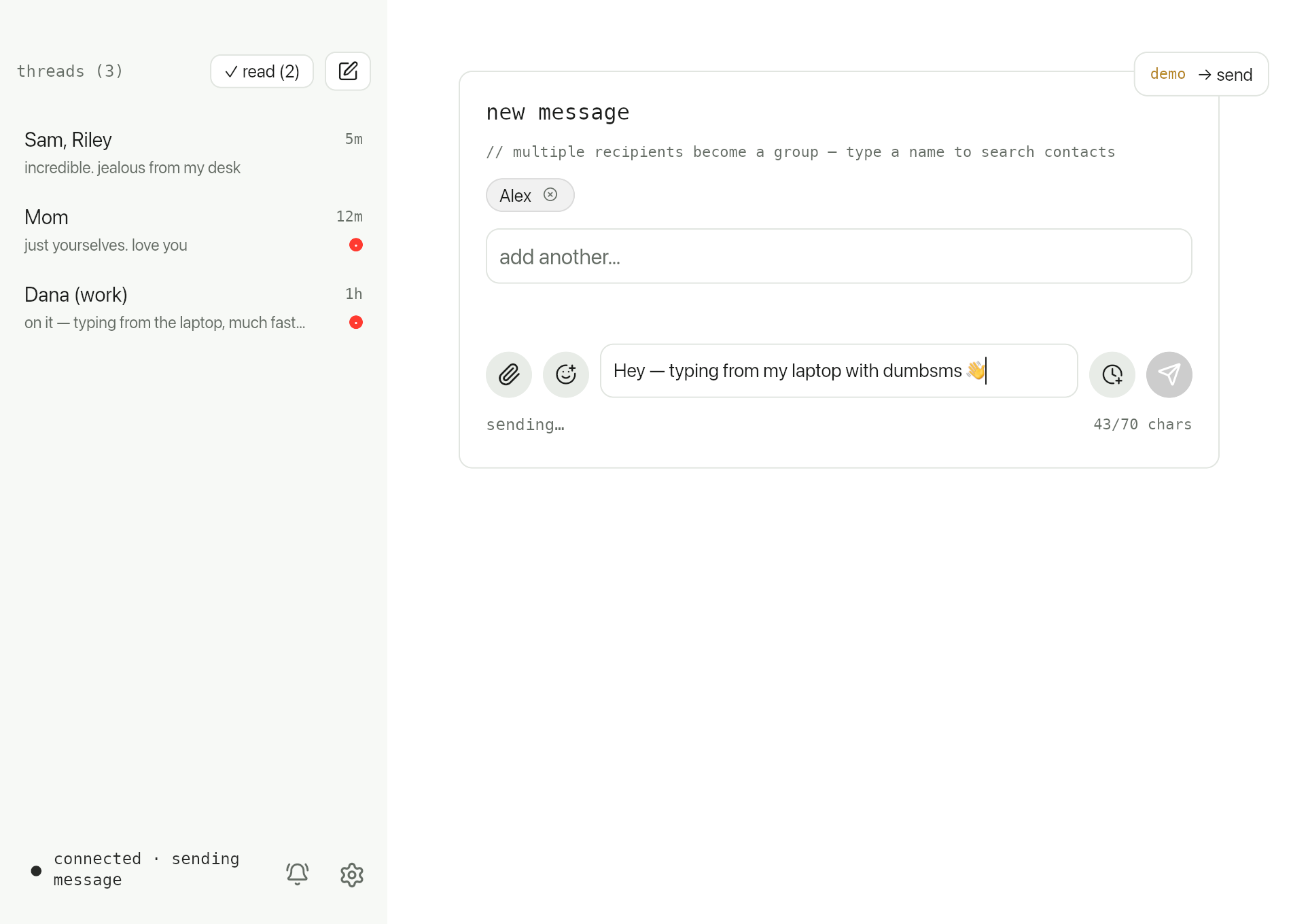
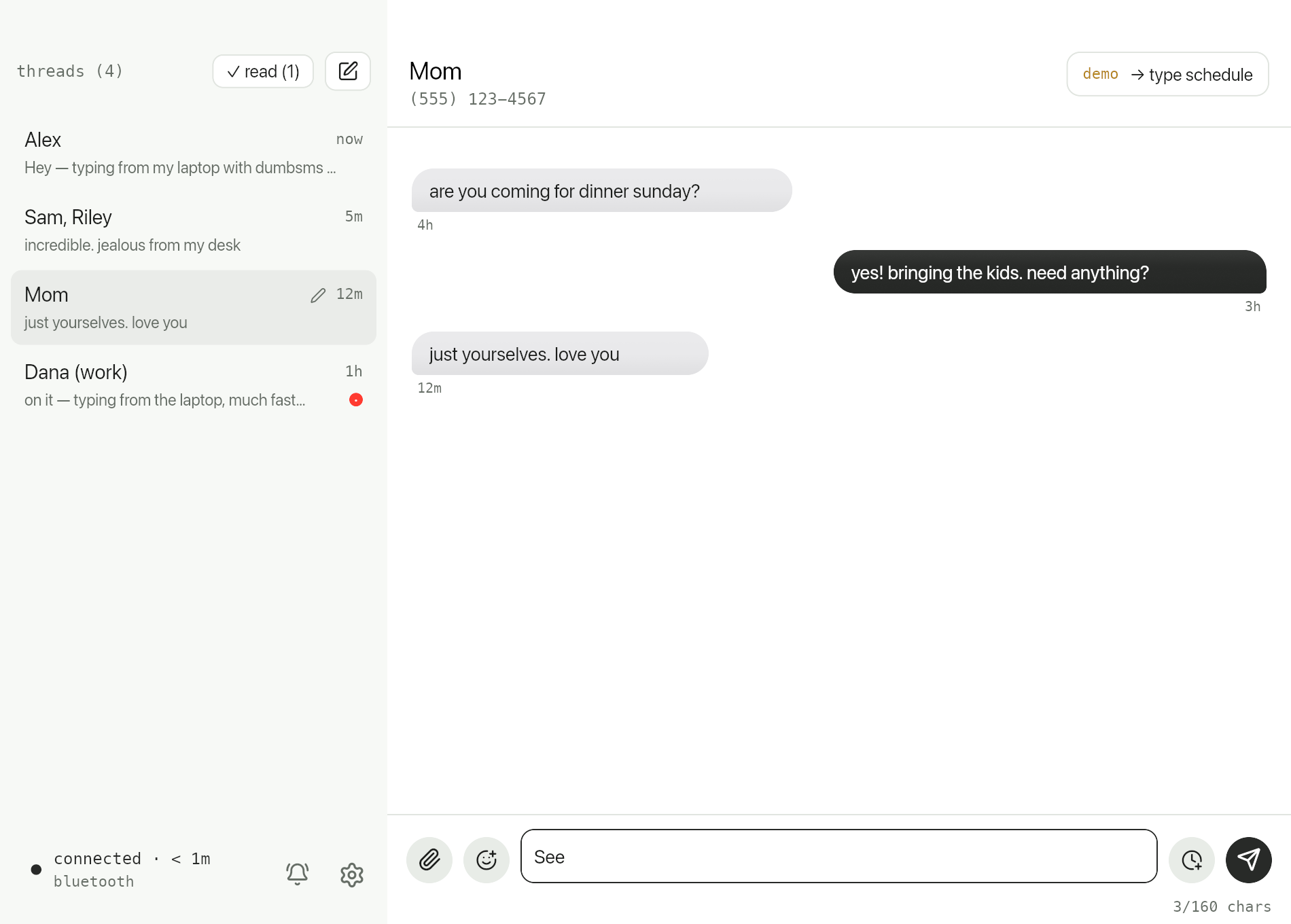
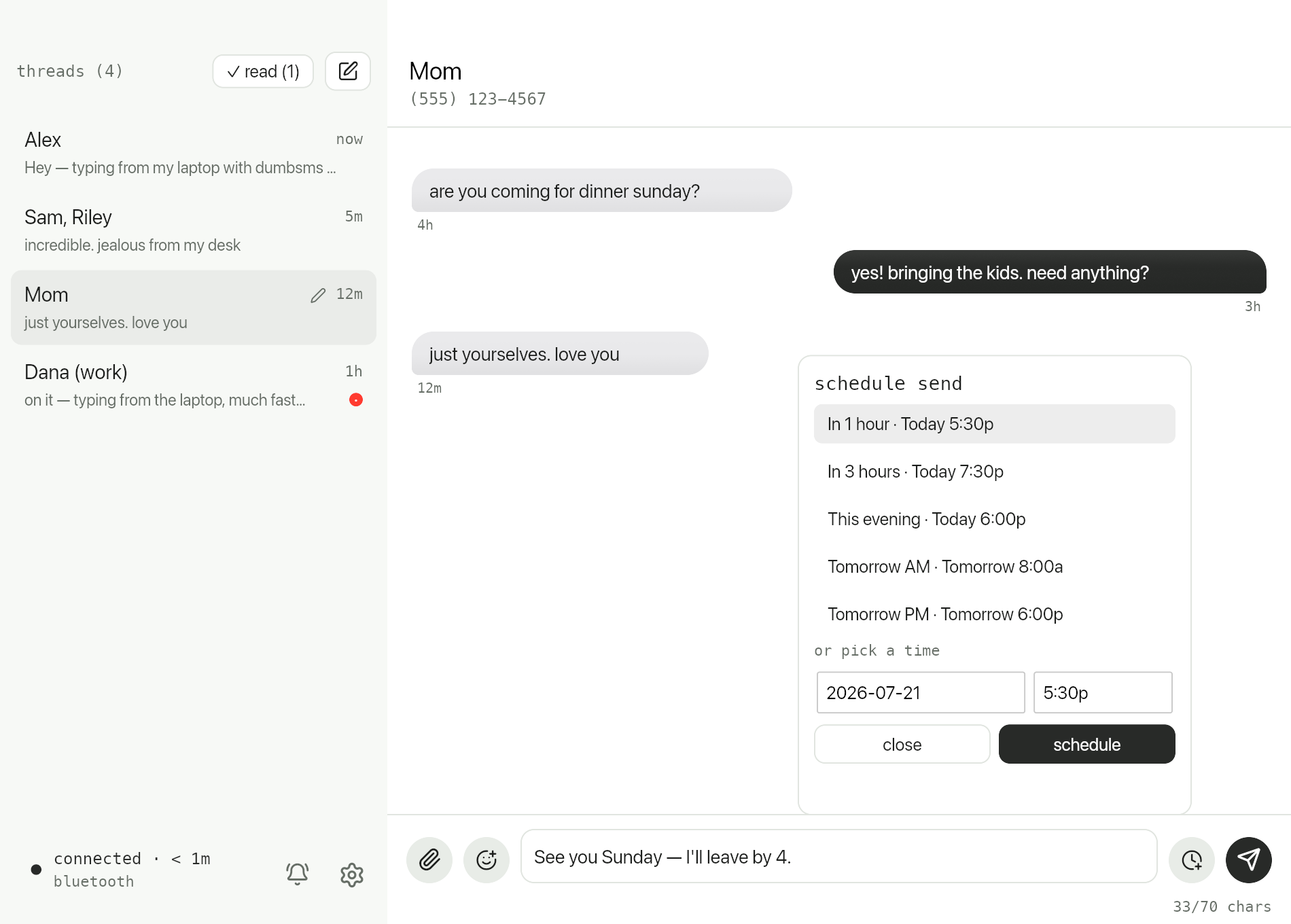
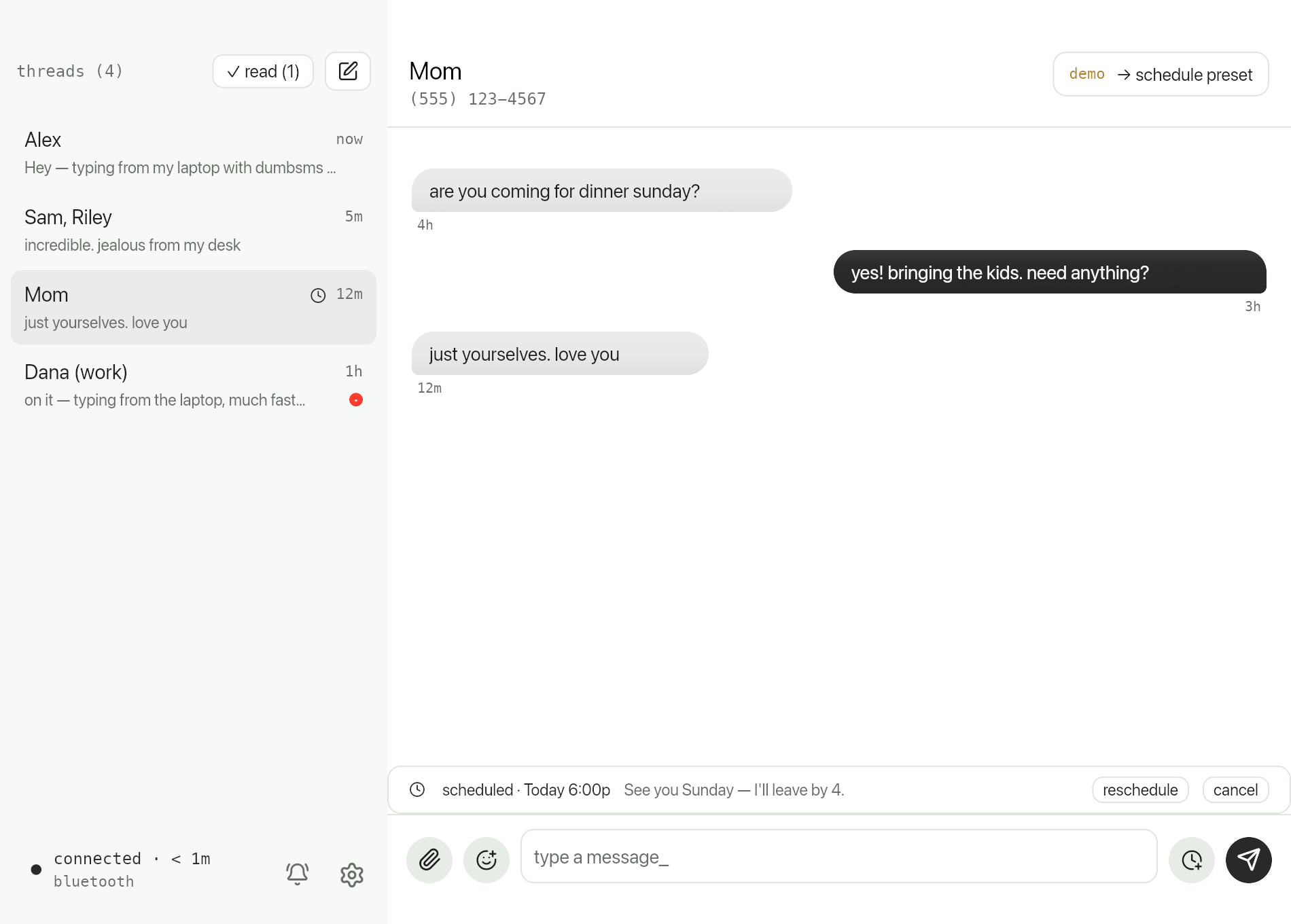
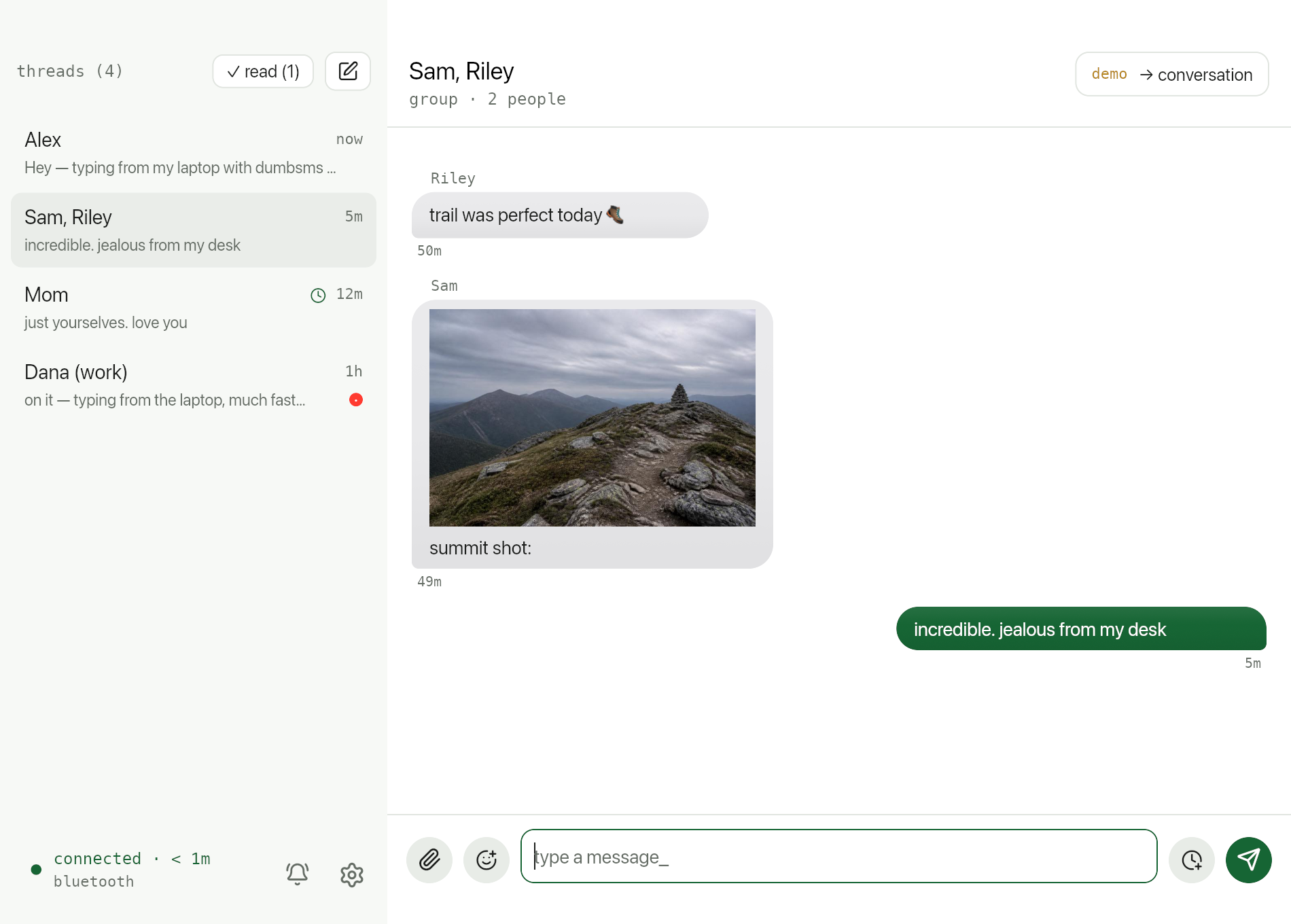
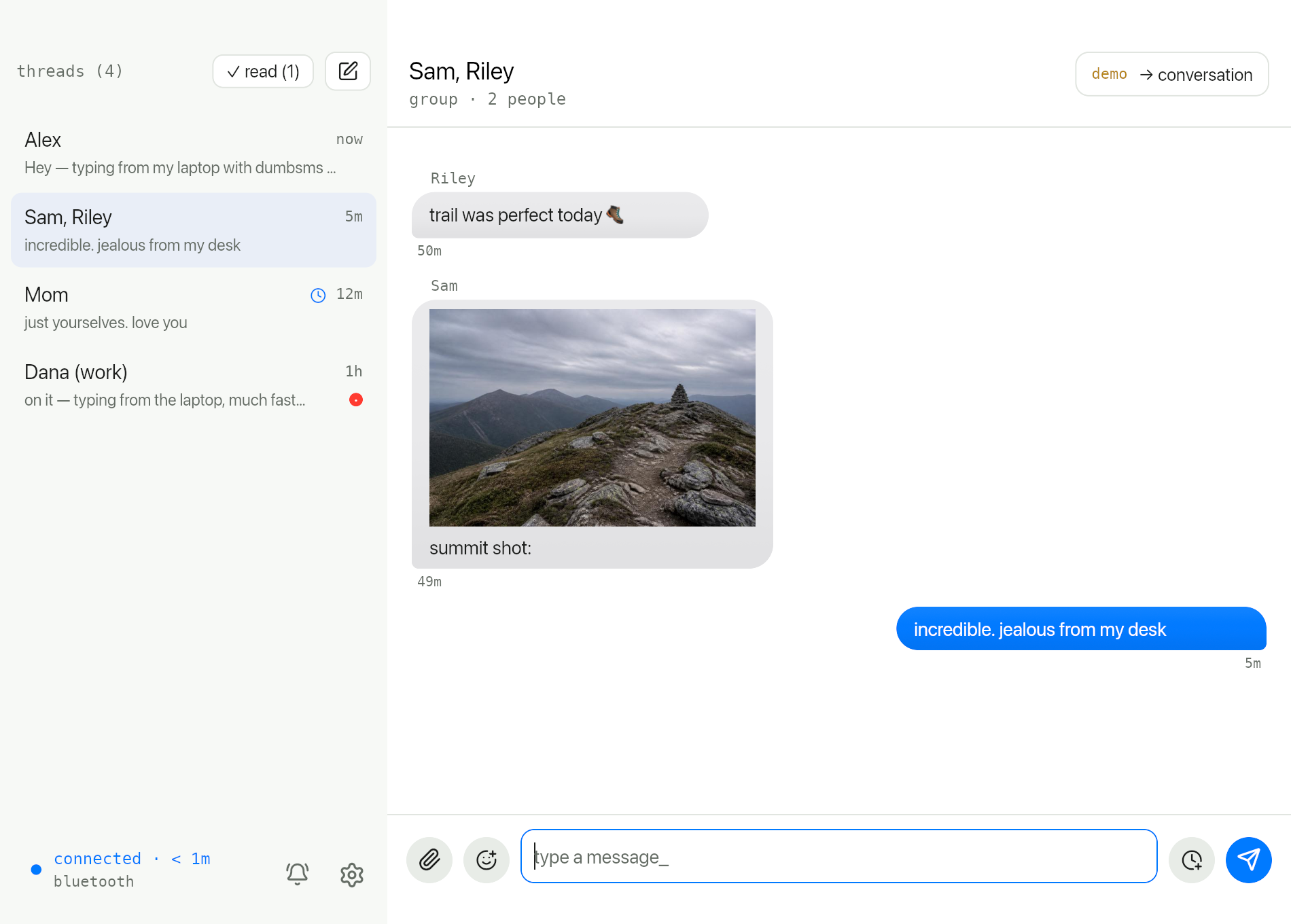
Once your phone is connected, dumbsms behaves like a familiar desktop messenger — threads on the left, conversation on the right — except every message actually goes through your flip phone's SIM.
// preview tour
See it in action
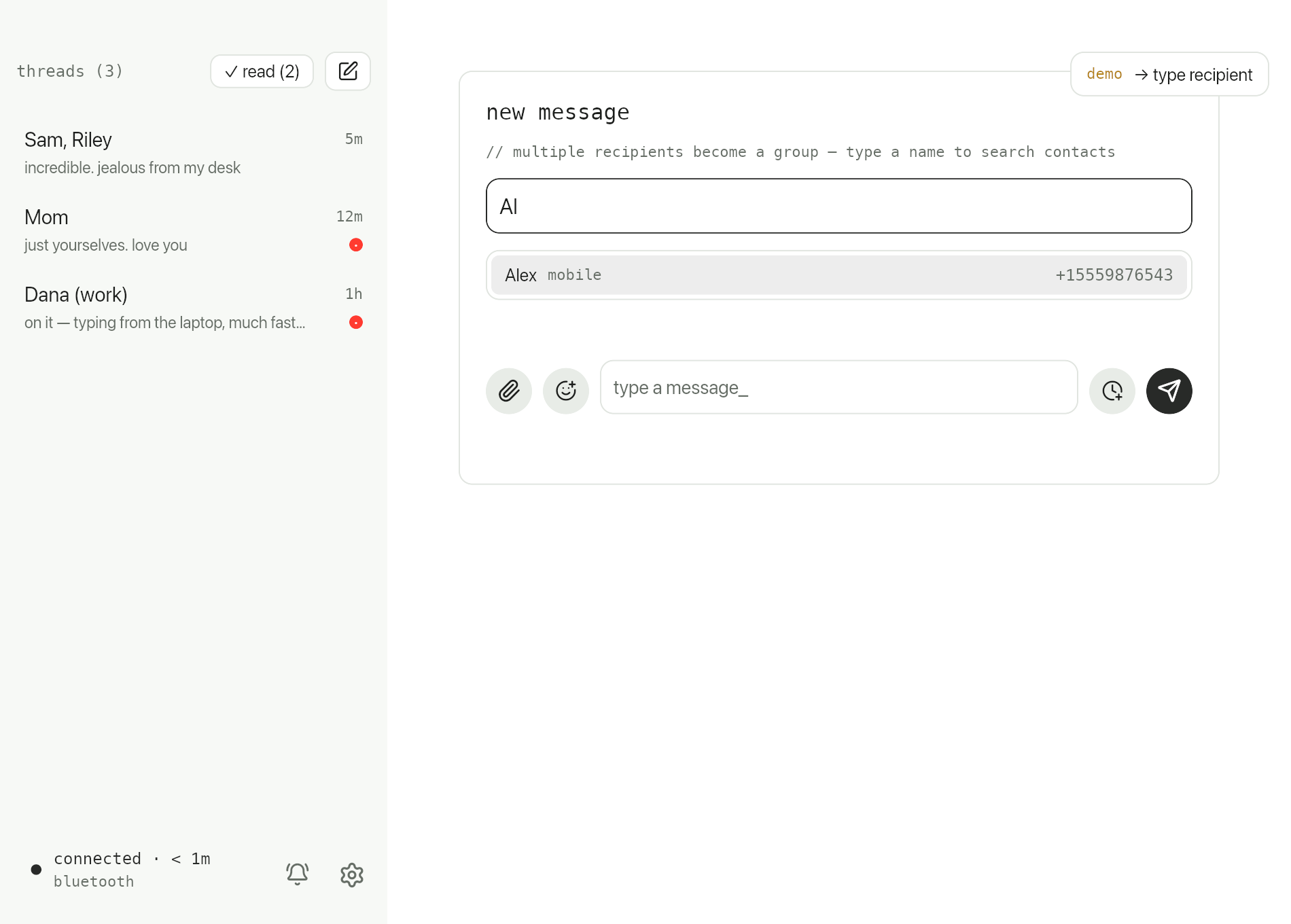
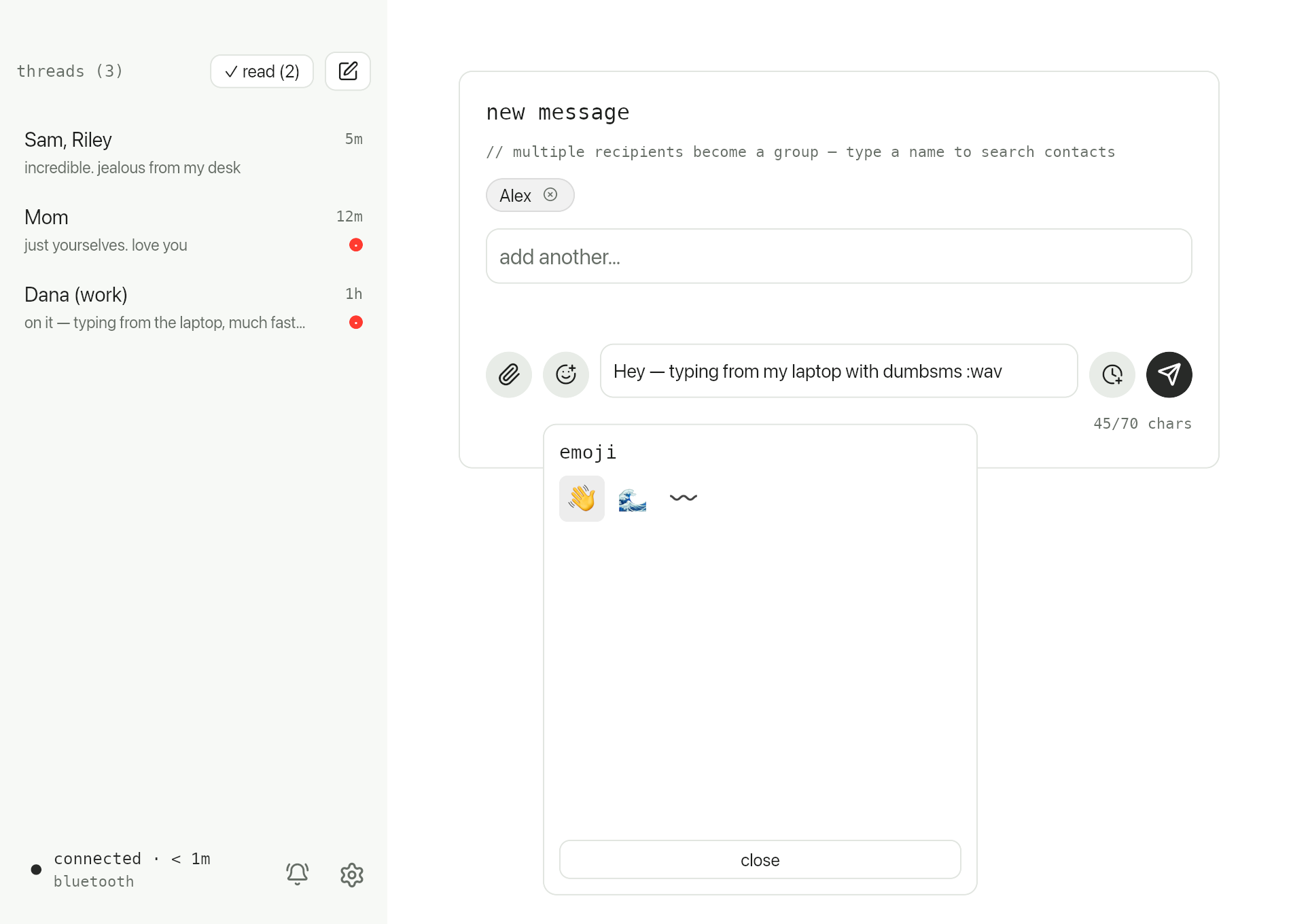
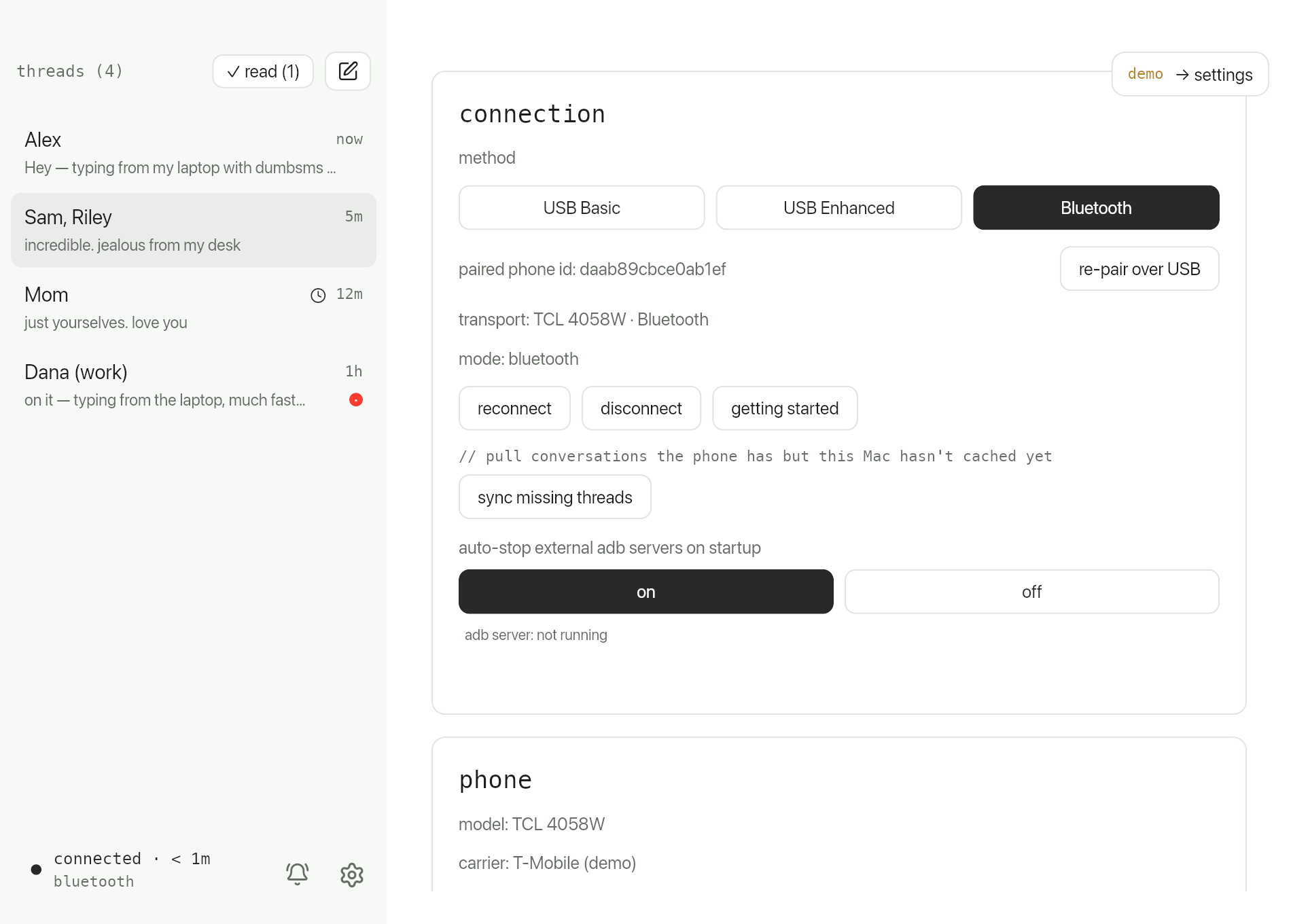
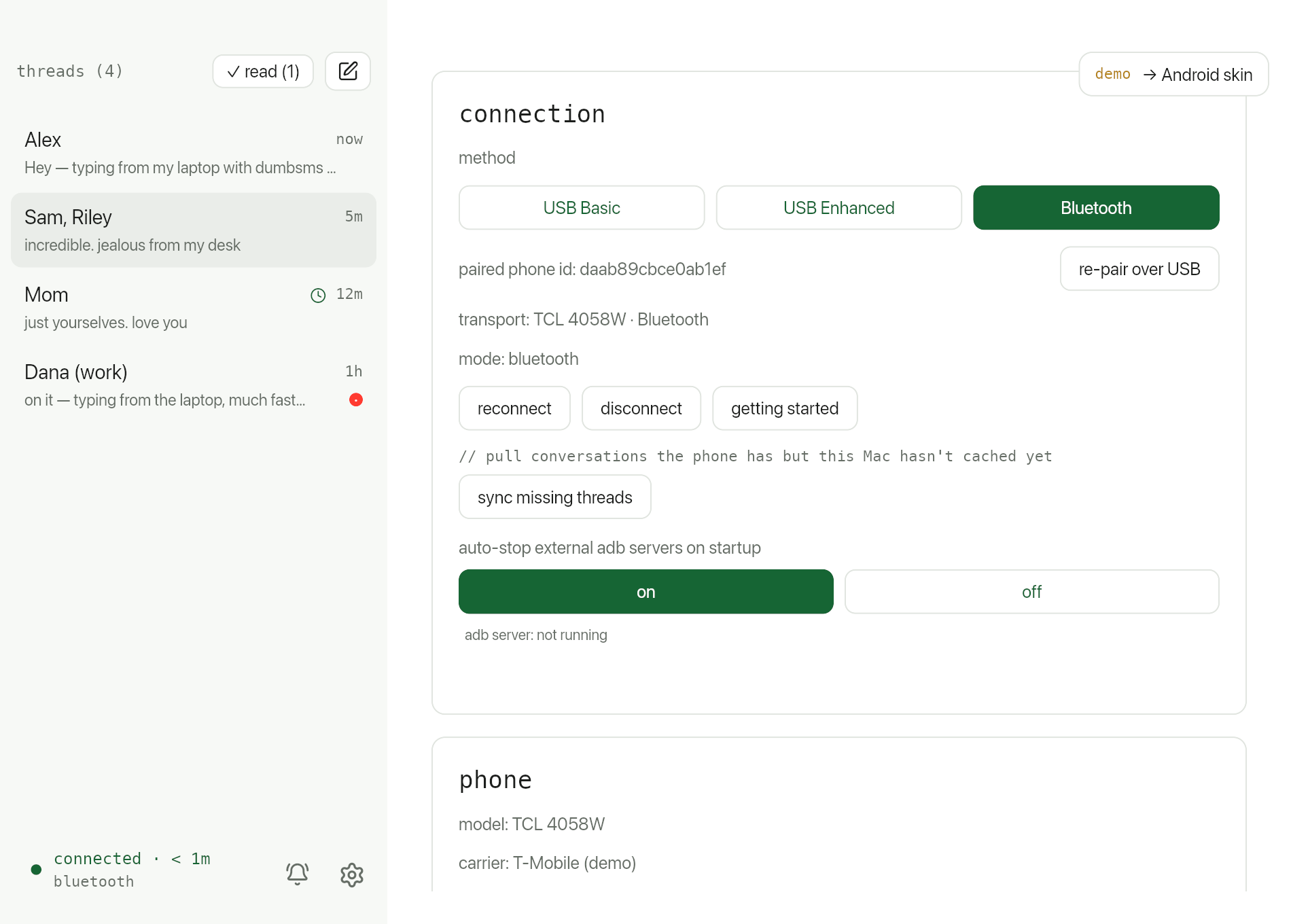
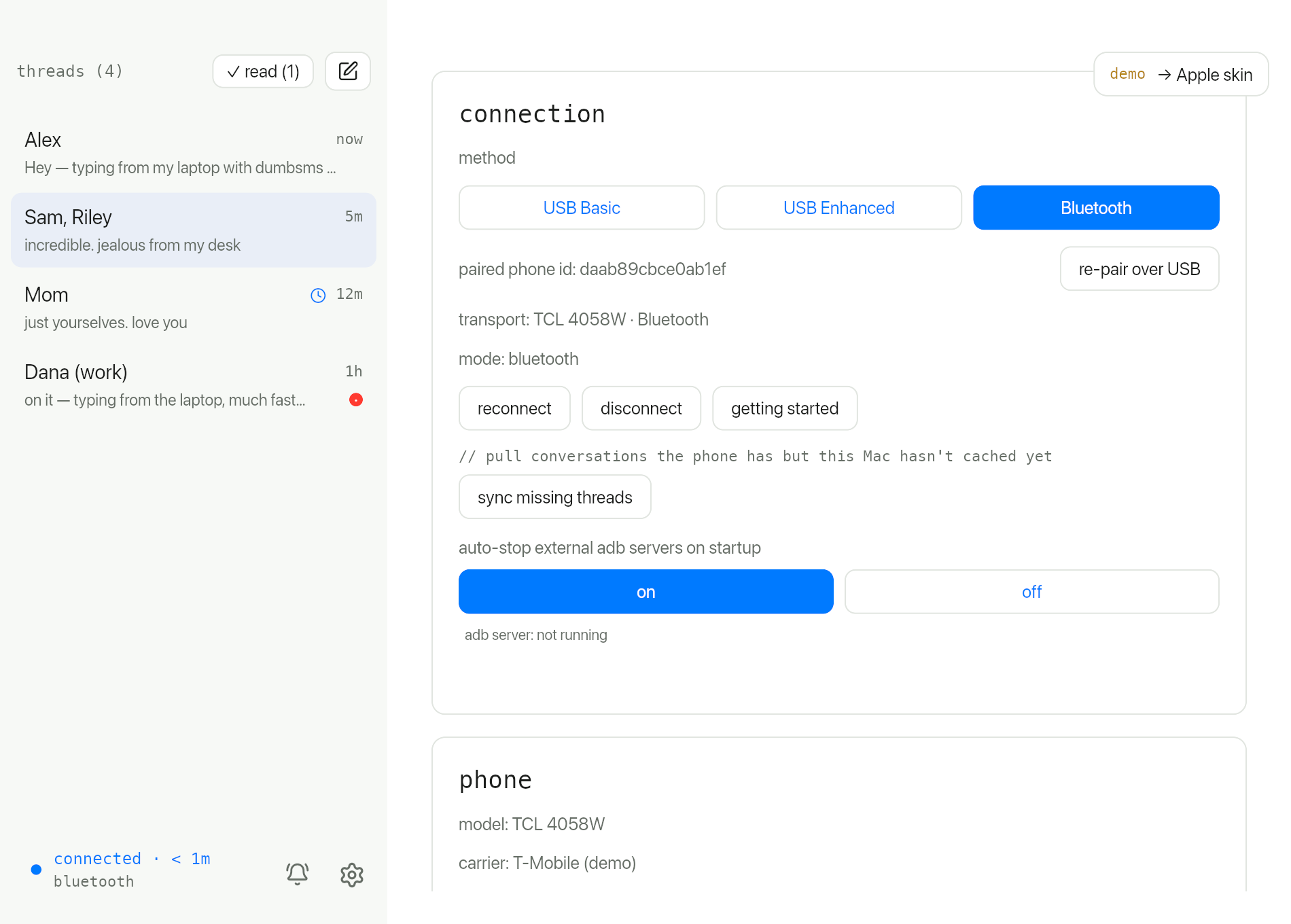
Screenshots from the built-in preview tour — same flows as the real app, captured automatically for docs and the website.
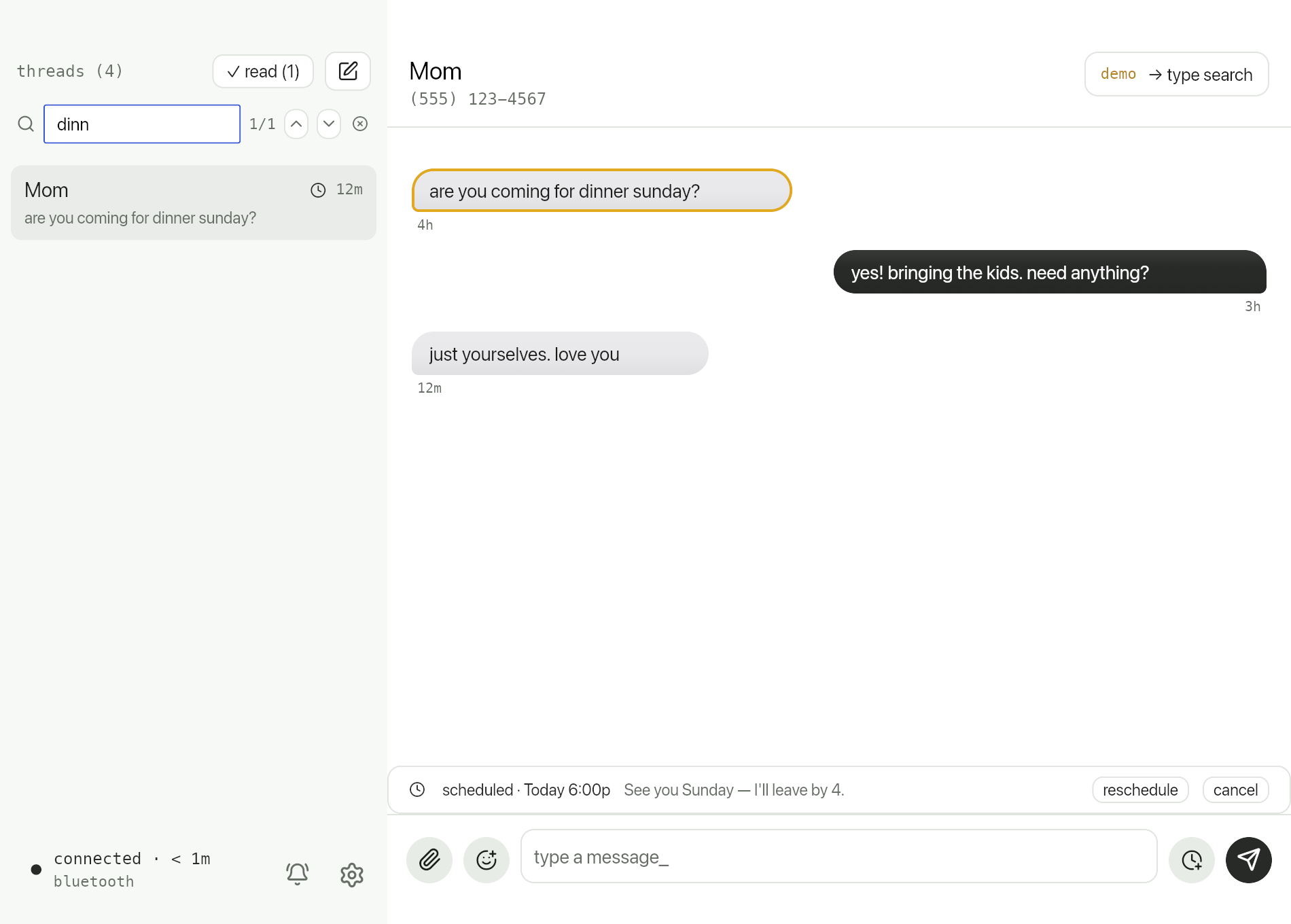
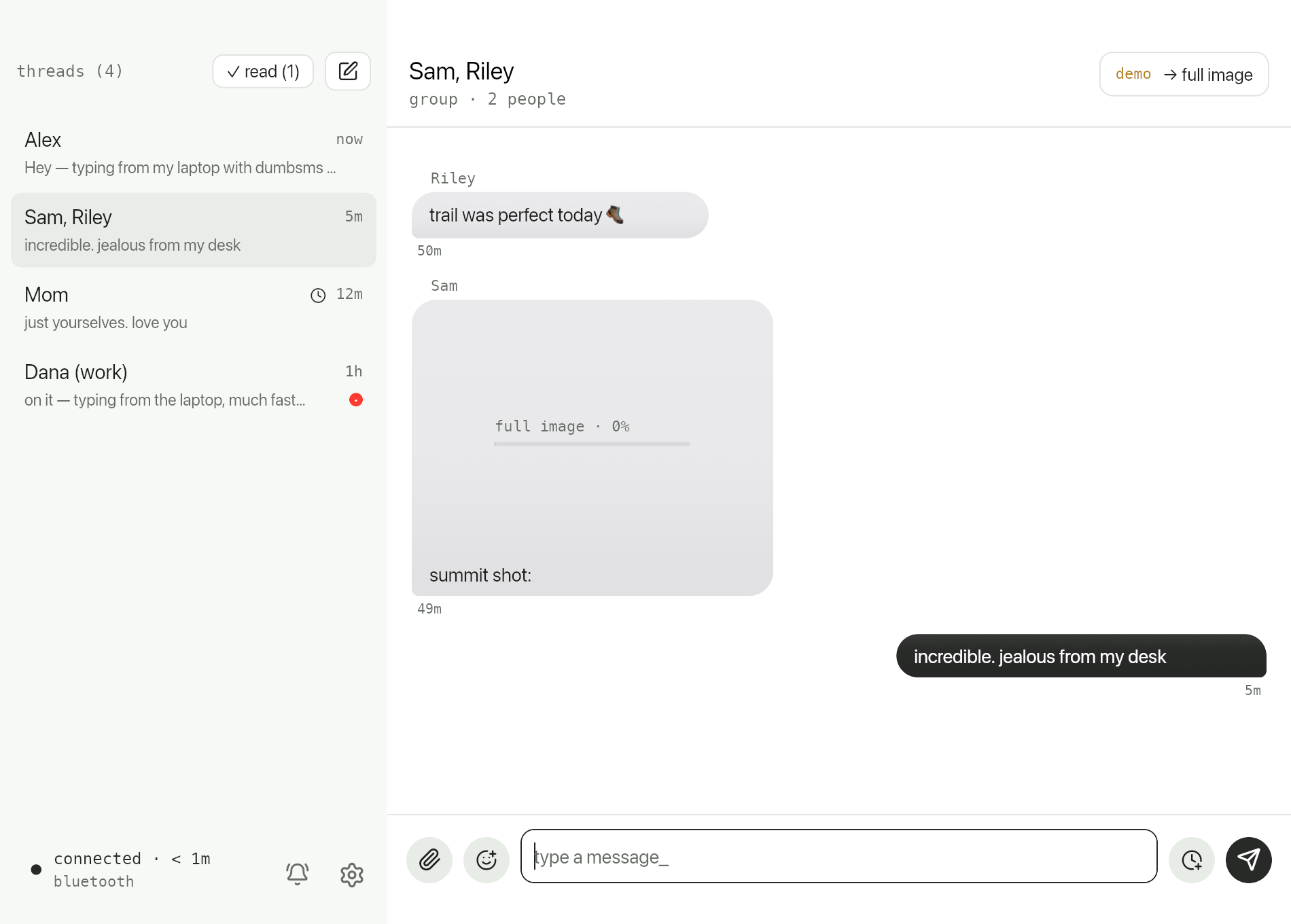
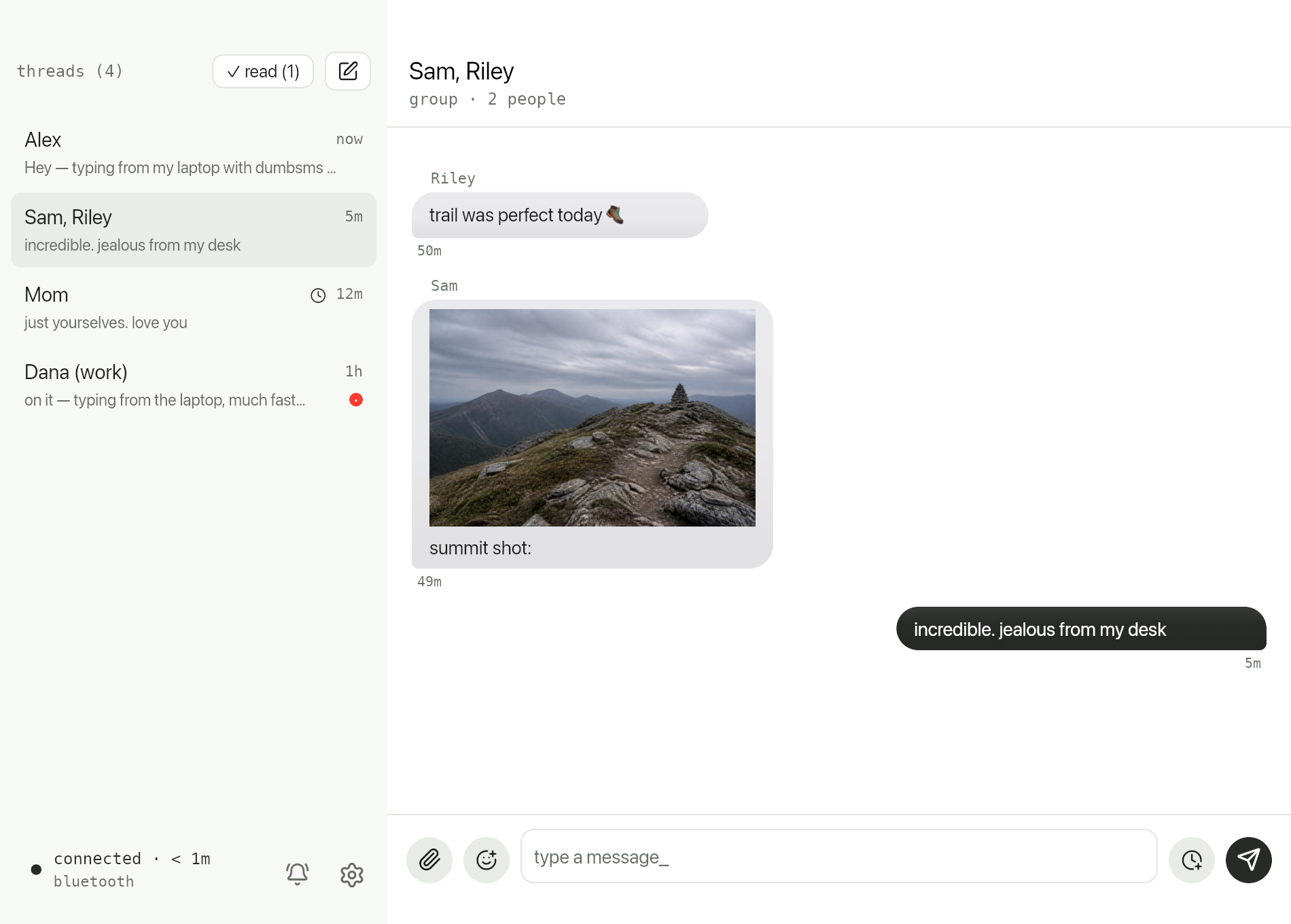
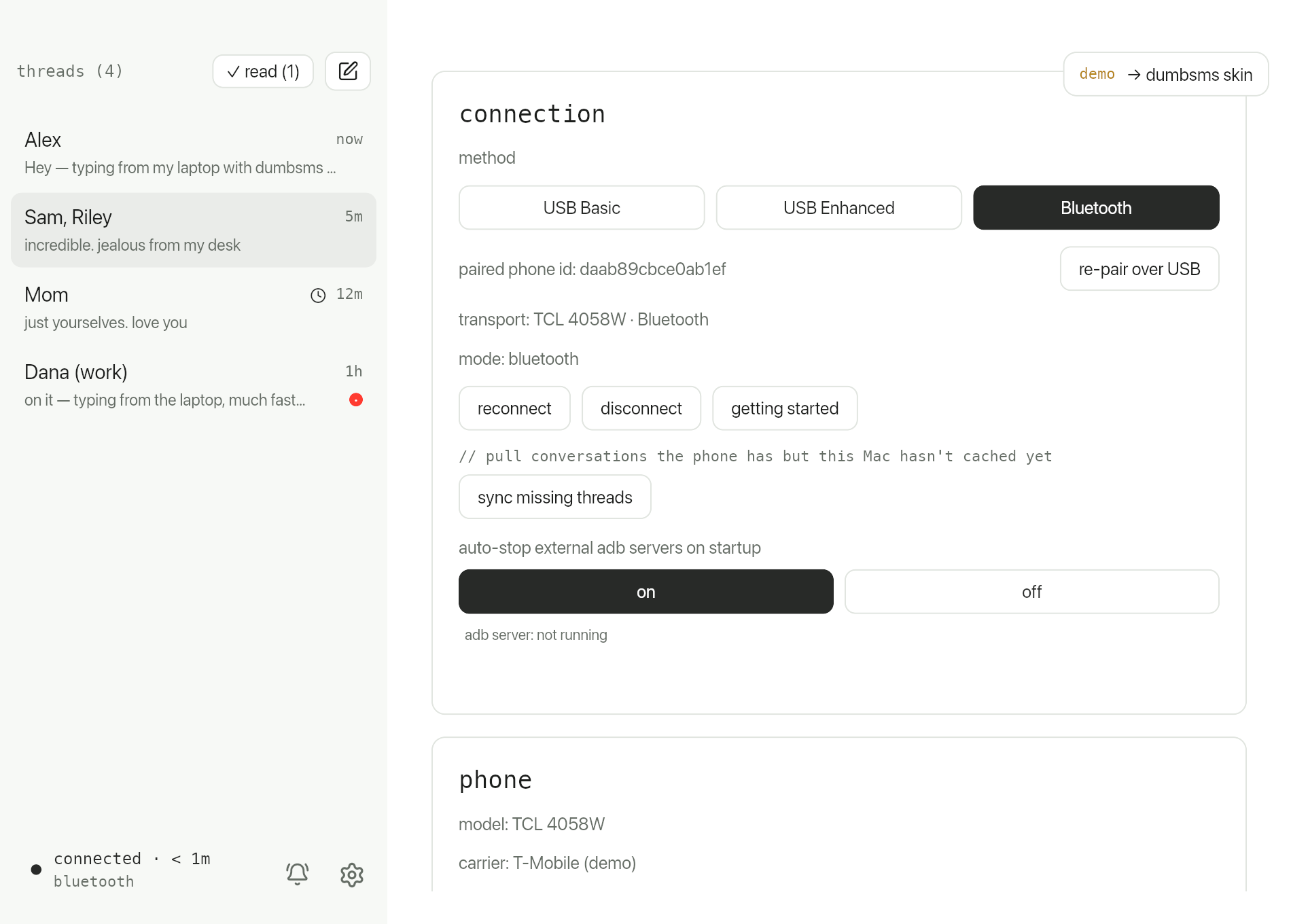
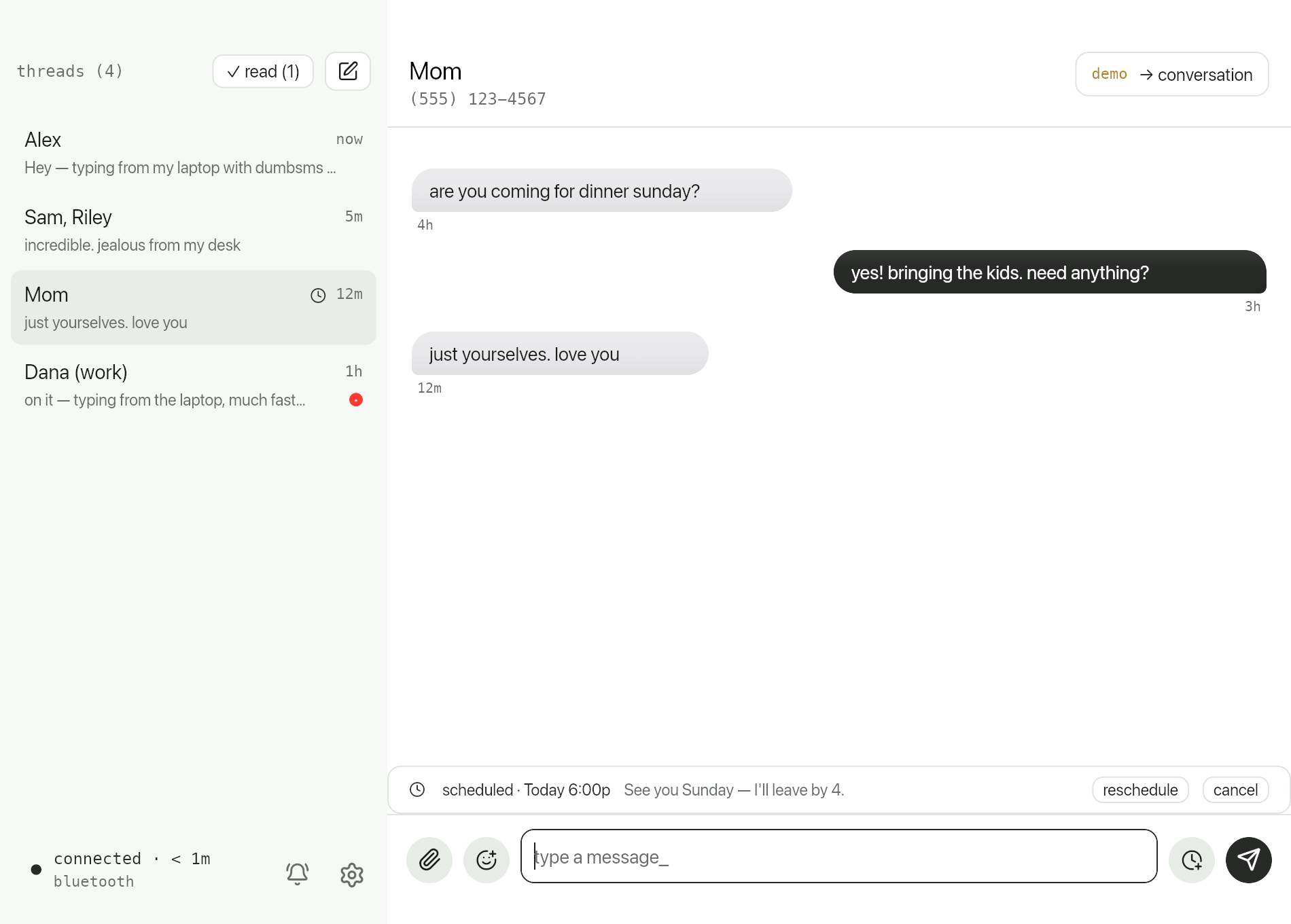
Messages
Threads sync from the phone. Select one to read the history and reply from your keyboard. While a full sync runs (first connect or after clearing cache), a progress indicator shows how far along the backfill is. On a TCL Flip Go, especially over Bluetooth, that backfill can take a while — the phone moves data at roughly ~1.2 K/s vs ~15 K/s on a Sonim (~10× slower).
- Click + new to start a message. Pick recipients from macOS Contacts or type a number — once you add a comma, numbers chip-ify so you see names instead of digits when possible.
- Attach a photo with the + button. Images are resized for MMS automatically.
- Group threads show every participant. Replies stay in the group when the companion app is installed.
- Each thread keeps its own compose box. Switch threads and your draft (or an in-progress send) stays put.
- The thread list shows small indicators for drafts, sending, or a failed send you haven't opened yet.
Contacts & numbers
- Right-click any phone number in the UI to copy it or add to contacts (quick first/last name form, saved as a mobile number in macOS Contacts).
- Unknown numbers in the recipient field become chips after you comma-separate them, even without a contact name.
Read & delete
- When there are unread messages, a mark all read button appears next to + new, showing how many threads are unread.
- Right-click a thread to mark as read, mark as unread, or delete thread.
Settings overview
Open the gear icon. Settings are grouped into cards:
Phone
- Shows model, carrier, IP (when on Wi‑Fi), connection mode, and device id.
- reconnect / disconnect control the live link to the phone.
- adb server status — warns if a conflicting local
adbprocess is blocking USB, with a one-click stop adb server button. - auto-stop adb on startup — on by default; stops stray adb servers when dumbsms launches so USB "just works".
Companion app
Install, upgrade, reinstall, or uninstall the on-phone helper. See the companion app guide.
Appearance
Toggle between two accent palettes — a green "modern" look and a blue alternative. The whole app recolors live.
Cache
Messages, read-state, and pulled photos are cached on your computer so history loads instantly — keyed per phone. The cache card shows total size (or calculating… / syncing… while busy), a clear cache button to force a reload from the phone, and open buttons to reveal each folder in Finder.
About
App version, author contact (e2@dumbsms.com), links to this site and the tip jar.
What stays on your machine
dumbsms is deliberately local-only:
- No cloud account, no telemetry, no message upload.
- The phone is the source of truth for what's actually sent and received.
- Your computer keeps a cache and local read/delete preferences for a better desktop experience.